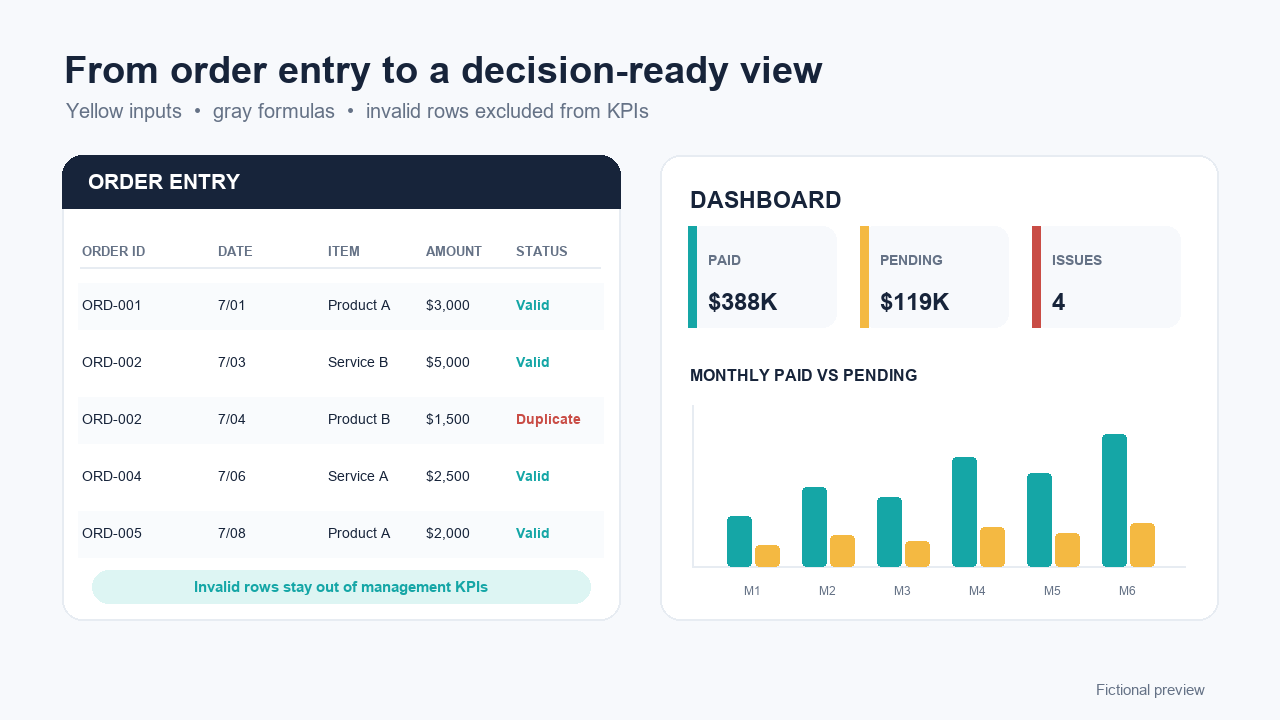
Define the boundary before adding columns
This is a customer sales order and payment-status tracker. It is not a supplier purchase-order register, invoice generator, inventory system, accounting ledger, bank reconciliation, or tax record. Keeping that boundary visible prevents a lightweight workbook from quietly becoming a system it cannot safely replace.
Use one row for one logical order. If you need multiple receipts, refunds, installment allocation, or one order split across several invoices, use a separate payment ledger or a system that preserves transaction-level history instead of forcing everything into one status cell.
Use 14 fields that each have one job
Keep personally identifying and financial details out of the tracker unless they are genuinely required. A stable customer code is normally enough for operational grouping.
| Field | Fictional example | Purpose |
|---|---|---|
| Order ID | ORD-1042 | Stable reference for one logical order |
| Order Date | 2026-07-14 | When the order was accepted |
| Customer Code | C-018 | De-identified customer reference |
| Item | Website maintenance | Product or service label |
| Quantity | 2 | Positive numeric quantity |
| Unit Price | 450 | Price per unit in one stated currency |
| Discount | 50 | Non-negative order-level discount |
| Order Amount | 850 | Quantity × Unit Price − Discount |
| Payment Status | Pending | Paid, Pending, or Cancelled |
| Due Date | 2026-07-31 | Unambiguous payment due date |
| Payment Date | Blank | Blank until paid |
| Sales Channel | Direct | Optional channel grouping |
| Notes | Awaiting approval | Short operational note; no sensitive data |
| Data Status | OK | Formula-driven review signal |
Turn the range into an Excel Table, then use readable formulas
Select the header and sample rows, press Ctrl+T, confirm that the table has headers, and name it Orders. Microsoft documents that structured references use table and column names and adjust as rows are added or removed.
Order Amount
=MAX(0,[@Quantity]*[@[Unit Price]]-[@Discount])
This keeps a negative total from flowing silently into the dashboard. It does not decide whether a credit, refund, or cancellation is valid; those need an explicit workflow.
Overdue pending signal
=AND([@[Payment Status]]="Pending",[@[Due Date]]<TODAY(),[@[Order Amount]]>0)
TODAY makes the result change whenever the workbook recalculates. For a historical report, replace TODAY with a fixed report-date cell so the same report can be reproduced later.
Structured references with Excel Tables · Apply data validation to cells · PivotTables and PivotCharts overview
Validate inputs before summarizing them
- Flag duplicate Order IDs.A duplicate may be an error, correction, or source-system rule. Review it; do not automatically delete it.
- Require the fields used by formulas.Order ID, dates, item, quantity, price, payment status, and due date should not silently become blank or zero.
- Reject quantity at or below zero.Returns and cancellations need their own documented treatment.
- Reject negative unit prices and discounts.A discount above the order subtotal should be flagged for review.
- Restrict Payment Status.Use a validation list for Paid, Pending, and Cancelled so summaries do not split across spelling variations.
- Reject impossible or ambiguous dates.Use real Excel dates and a year-month-day display. Investigate a payment date before the order date instead of auto-correcting it.
Keep the dashboard smaller than the source table
A practical first dashboard can show valid order count, paid revenue, pending payments, overdue pending amount, paid-versus-pending by month, and item performance. PivotTables can summarize larger tables and PivotCharts can visualize those summaries, but neither verifies that the underlying rows are accurate.
The prepared workbook follows this limited scope. It does not provide partial-payment allocation, refunds, tax calculation, invoice issuance, inventory, banking, reconciliation, exchange-rate conversion, or a complete accounts-receivable aging ledger.
Run six deterministic checks on a de-identified CSV before importing it, or classify one outstanding balance by days overdue.
Build it yourself or inspect the ready-made version
Build from scratch when the learning value matters, the process is small, and you can test every formula and exception. Inspect the prepared workbook when you want the 500-row input table, fictional demo, validation signals, summaries, and documentation already assembled.
The Standard license is for one person or one internal organization. If you perform substantive discovery, configuration, testing, training, and handoff for external clients, compare the Consultant and Partner commercial licenses. The files may not be resold or redistributed as standalone templates.
Frequently asked questions
Is this the same as a purchase order tracker?
No. This guide is for customer sales orders and payment status. A purchase order tracker follows what your organization buys from suppliers and needs different fields, controls, and approvals.
Can this workbook issue invoices or reconcile bank deposits?
No. The described workflow does not create compliant invoices, connect to a bank, reconcile payouts, calculate tax, or prove that payment was received.
How should partial payments be handled?
The current ready-made workbook uses Paid, Pending, and Cancelled and is not designed for installment allocation. If partial payments are material, add a separate payment ledger or use a system that can preserve transaction-level history.
When should a team move beyond Excel?
Move when several people edit concurrently, permissions or complete audit trails matter, inventory and invoicing must stay synchronized, or automatic reconciliation and integrations are required.